Pomodoro timer for Windows: built-in or as a tile
Pomodoro on Windows: set up focus sessions in the Clock app, know their limits, and run work intervals with a timesheet from a dashboard tile.
Windows already comes with a Pomodoro timer: focus sessions in the Clock app. You pick a length, with breaks if you like, and get a timer; on Windows 11, Windows also turns on do not disturb for the duration. No extra app needed.
That route has three limits: the Windows integration (taskbar, Settings, do not disturb) exists only on Windows 11, while Windows 10 has just the Clock app itself; it depends on the Clock app; and it doesn’t record what you spent the time on. If you want to assign your Pomodoros to a project or client, you need a timer with a timesheet. Celerando has one: a Pomodoro tile that works together with time tracking, included in the free edition.
This guide covers both routes, what to do when the timer is missing or doesn’t go off, and how the two compare.
The Pomodoro Technique in one paragraph
The method was developed by Francesco Cirillo in the late 1980s and is named after his tomato-shaped kitchen timer (pomodoro is Italian for tomato). The steps, as Duke University’s Academic Resource Center describes them:
- Define the task.
- Set a timer for 25 minutes.
- Work only on that task until the timer goes off.
- Take a 5-minute break, preferably away from the screen.
- After four Pomodoros, take a longer 15 to 30 minute break.
The 25 minutes are a guideline, not a rule. What matters is that the timer doesn’t distract you: it should start quickly and let you know when time is up, without you checking on it.
The Windows route: focus sessions in the Clock app
On Windows 11 you can start a focus session in three ways:
- From the taskbar: select the clock or the notification bell (or press Win+N), choose an amount of time and select Focus.
- From Settings: System › Focus › Start focus session.
- From the Clock app: open Focus sessions, choose an amount of time, decide whether you want breaks and select Start focus session.
On Windows 10, only the last route remains: according to its Store listing, the Clock app from the Microsoft Store runs on Windows 10 (version 18362 or later) and includes focus sessions. Microsoft’s support page, however, describes them only for Windows 11; for Windows 10 it covers Focus assist.
During the session, Windows 11 shows a focus timer, turns on do not disturb and temporarily turns off flashing and badges of taskbar apps. You get a notification when the session ends. Under System › Focus you choose what future sessions do: session duration, show the timer in the Clock app, hide badges and flashing on taskbar apps, turn on do not disturb.
For a single block of work, that’s a good solution. The limits show up once you want more:
- Windows integration on Windows 11 only. Microsoft describes the taskbar, Settings and the automatic do not disturb only for Windows 11. On Windows 10 you start focus sessions in the Clock app only.
- Depends on the Clock app. If you uninstalled it, Microsoft says you need to reinstall it from the Microsoft Store first.
- No timesheet. Microsoft describes picking tasks from Microsoft To Do, but no record of how much time went into which project. If you bill hours, you still track them separately.
With Celerando: a Pomodoro tile with a timesheet
Celerando is a dashboard for Windows 10 and 11: programs, websites, files and small tools sit there as tiles, and Alt+Q opens the dashboard at the mouse position. Three of the tiles are clocks:
- Pomodoro: a timer for focused work intervals, set to 25 minutes by default, adjustable from 5 to 120.
- Time tracking: your timesheet for project hours. It records how long you worked on what.
- Countdown: a timer with its own chime that never records anything.
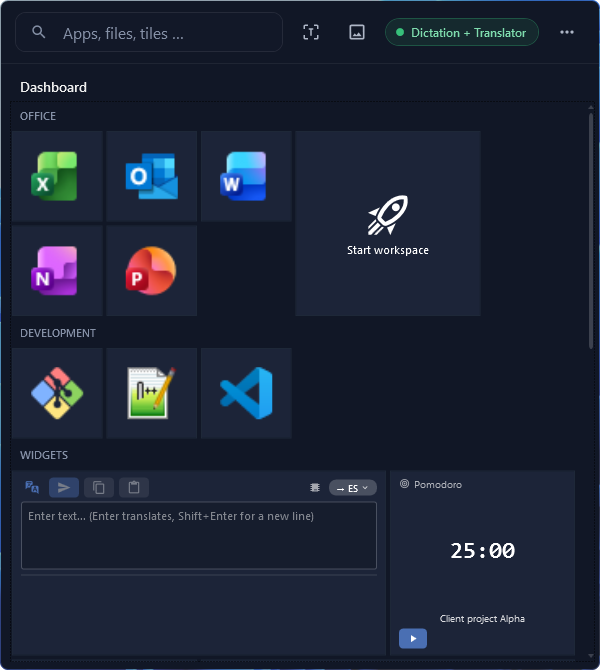
The key is how Pomodoro and time tracking work together: they share exactly one work session. An independent countdown can keep running at the same time. The rule fits in one sentence: the Pomodoro timer only ends time tracking that it started itself.
- You start a Pomodoro while time tracking is idle: the timer starts tracking along with it. After 25 minutes it goes off, tracking stops and the time is booked. You never have to remember to stop.
- Time tracking is already running and you want 25 focused minutes: you add the timer. It goes off after 25 minutes, time tracking keeps running undisturbed, and your working time stays one continuous entry instead of many pieces.
- The Pomodoro doesn’t belong to a project (tidying up, reading, learning): click the project line once more to reach “No project”. The timer runs as usual, but the time lands on no client project.
The widget tiles, including countdown, Pomodoro, time tracking, connections, QR code and text snippets, are included in Free, free forever. Free allows up to 5 tiles on the dashboard, Free+ (free with email registration) 10, Pro (€36, one-time) unlimited; all editions are listed under Editions and pricing. Celerando installs into your user profile, with no admin rights and no account.
Step by step: your first Pomodoro with Celerando
- Download and install Celerando (Windows 10 build 19041 or later, or Windows 11).
- Add a Pomodoro tile to the dashboard: right-click the heading of a tile group or an empty spot › Add widget › Pomodoro.
- If you want to book time to projects, add a time tracking tile the same way and enter your projects there: right-click the tile › Edit › Projects › Add. The projects apply to all time tracking tiles.
- Set the length: 25 minutes for the classic routine, or any other value from 5 to 120 minutes.
- In the project line, pick the project you’re working on, or “No project”. Until you’ve added projects, the line shows only “No project”.
- Start it and work until the timer goes off.
- For the break, use the countdown tile: set it to 5 minutes, it lets you know with its chime and writes nothing to your timesheet.
Because Alt+Q opens the dashboard over any program, you don’t have to hunt for a window before the next Pomodoro. There’s more about the clocks on the home page under “Pomodoro and time tracking”.
When it doesn’t work
| What you see | Cause | What helps |
|---|---|---|
| Focus is missing in Windows | Windows 10, or the Clock app is uninstalled | on Windows 10, open focus sessions in the Clock app (the taskbar and Settings have no Focus there); if the Clock app is missing, reinstall it from the Microsoft Store |
| Do not disturb stays on after the session | It was already on before the session; Microsoft says it then stays on | turn do not disturb off manually |
| Missed notifications during the session | Do not disturb silenced them | check the notification center (Win+N) |
| Celerando: the Pomodoro didn’t stop time tracking | Time tracking was already running; the timer only ends what it started itself | by design: stop time tracking yourself when you’re done |
| Celerando: time landed on the wrong project | A different project was selected in the project line | check the project line before you start; use “No project” for personal tasks |
| Celerando: the project line doesn’t change | No projects have been added yet | add projects in the time tracking tile under Edit › Projects |
| Celerando: a tile is locked (“This tile is locked”) | Free allows up to 5 tiles, widget tiles included | move to Free+ (10 tiles, free) or Pro (unlimited) |
Focus sessions or Celerando: the comparison
| Focus sessions (Windows) | Celerando Pomodoro tile | |
|---|---|---|
| Windows version | Clock app: Windows 10 and 11; taskbar, Settings, do not disturb: Windows 11 | Windows 10 (build 19041 or later) and 11 |
| Length | selectable, with or without breaks | 25 minutes by default, 5 to 120 |
| Do not disturb | turned on automatically on Windows 11 | you turn it on in Windows yourself |
| Book time to projects | not described | yes, with the time tracking tile |
| Breaks | selectable in the session | countdown tile, records nothing |
| Starting | Clock app; on Windows 11 also taskbar and Settings | tile on the dashboard (Alt+Q) |
| Cost | included in Windows | included in Free |
If you only want to work 25 minutes at a stretch now and then, focus sessions are enough. If you need to know how much time went into which project, the tile is the better route. You can also combine them: a focus session for quiet, Celerando for the timesheet.
Online timers in the browser work too, as long as the tab stays open; but they know nothing about your projects, and one tab among many is easy to lose sight of.
Frequently asked questions
Does Windows have a built-in Pomodoro timer?
Yes: focus sessions in the Clock app, with a selectable length and breaks. On Windows 11 they’re built into the taskbar and Settings and turn on do not disturb; on Windows 10 you start them in the Clock app from the Microsoft Store.
How long is a Pomodoro?
Classically 25 minutes of work, then a 5-minute break, and after four Pomodoros a longer break of 15 to 30 minutes. Celerando’s Pomodoro tile is set to 25 minutes by default and adjustable from 5 to 120 minutes.
Can I assign my Pomodoros to a project?
In Celerando, yes: the Pomodoro tile works together with time tracking, and you pick the project in the project line. For work without a client there’s “No project”. Microsoft’s help on focus sessions doesn’t describe assigning time to projects.
Is the Pomodoro timer in Celerando free?
Yes. Pomodoro, time tracking and countdown are widget tiles, which are included in Free. Free is free forever and limited to 5 tiles; Free+ (free with email registration) has 10.
Does Celerando need the internet for this?
No. Celerando contacts the internet only for the downloads you choose (models, additional languages, optionally the CUDA runtime), the update check, license activation including the query of occupied seats, a one-time installation ping on the very first launch, and addresses you enter yourself (web app tiles load the site’s icon, the connections tile checks your servers). The clocks aren’t part of it.
Can a Pomodoro timer help with strain from typing?
A timer doesn’t replace medical advice, but it reminds you of breaks you’d otherwise forget. How to take further load off your hands at the PC is covered in the guide Tendonitis from typing and mouse use: how to take the load off.
What else does the dashboard do besides clocks?
Programs, files, folders and websites as tiles, several of them launched with one click from a multistart tile. How to keep websites there instead of on the desktop is covered in the guide How to save a website to your desktop.
Sources
As of October 29, 2026.
- Microsoft Support: Focus: Stay on Task Without Distractions in Windows (starting and configuring focus sessions, Clock app, do not disturb, Windows 10: Focus assist)
- Microsoft Store: Windows Clock (focus sessions, system requirement Windows 10 version 18362 or higher)
- Duke University, Academic Resource Center: Pomodoro Technique (origin and steps of the method)
More guides
- How to Ping an IP Address on Windows: Ping Test and Continuous PingRun a ping test in Command Prompt, start a continuous ping with ping -t, and learn what Request timed out and Destination host unreachable mean.
- Recent Files in Windows 11 and 10: Find, Hide and Clear ThemWhere Windows shows your recently opened files: File Explorer, Start, Jump Lists and Office. Plus how to hide or clear the list and keep files pinned.
- How to get the old right-click menu back in Windows 11Restore the full Windows 10 context menu in Windows 11: once with a shortcut, permanently with a registry entry or with a switch in Celerando.