How to save a website to your desktop on Windows
Put a website on your Windows desktop as a shortcut or install it as an app in Chrome, Edge and Firefox, and when a tile beats a crowded desktop.
There are two ways to save a website to your desktop on Windows. As a shortcut: double-click it and the page opens in your default browser, like a bookmark that lives on the desktop. Or as an app: Chrome and Edge install the site, it then opens in its own app window, and you can put it on the desktop, in the Start menu or pin it to the taskbar. Firefox for Windows can do this too, from version 143, and puts the app on the taskbar and in the Start menu.
This guide covers both for Chrome, Edge and Firefox, what to do when it doesn’t work, and when tiles serve you better than a desktop full of icons.
Shortcut or app: the difference
| Shortcut | Installed as an app | |
|---|---|---|
| Opens in | your default browser, as a normal tab | its own app window |
| Works in | Chrome, Edge, Firefox | Chrome, Edge, Firefox for Windows (version 143 and later) |
| Where it goes | desktop | desktop, Start menu, taskbar (Firefox: Start menu, taskbar) |
| On another PC | copy the file (extension .url) | install it again in the browser there |
| Removing it | delete the shortcut | uninstall it in the browser |
A shortcut is quick to make and not tied to one browser: Mozilla says explicitly that it opens in your default browser, even if you created it with Firefox. An app is worth it for sites you keep open all day (webmail, a ticket system, time tracking). Microsoft describes the point as turning websites into desktop apps “for faster access and improved productivity.”
Both share the same limit: every site is its own icon. With three sites that’s fine. With ten, the desktop is cluttered, each browser has its own menu path, and every morning you still click everything open one at a time.
With Celerando: websites as tiles that start together
Celerando doesn’t put websites on the desktop. It keeps them as web app tiles in a dashboard, next to your programs, files and folders. You open the dashboard with Alt+Q at your mouse position, whatever program you’re in, and the built-in search finds any tile. Your desktop can stay buried under windows.
Creating a tile:
- Copy the site’s address.
- Right-click the dashboard and choose “Add web app”, or just press Ctrl+V if the address is already in your clipboard.
- Done. The site’s own icon becomes the tile image. Celerando fetches it from the website itself and stores it locally, without asking a third-party favicon service. If you’d rather not, switch it off in the editor and pick your own from more than 13,000 Material Design icons.
What the browser options can’t do: a multistart tile opens several tiles at once, whether there’s a program on your disk or an address on the network behind them. “Outlook, Teams, the ticket system and time tracking” becomes a single click. Celerando creates one during first-time setup, called “Start workspace”.
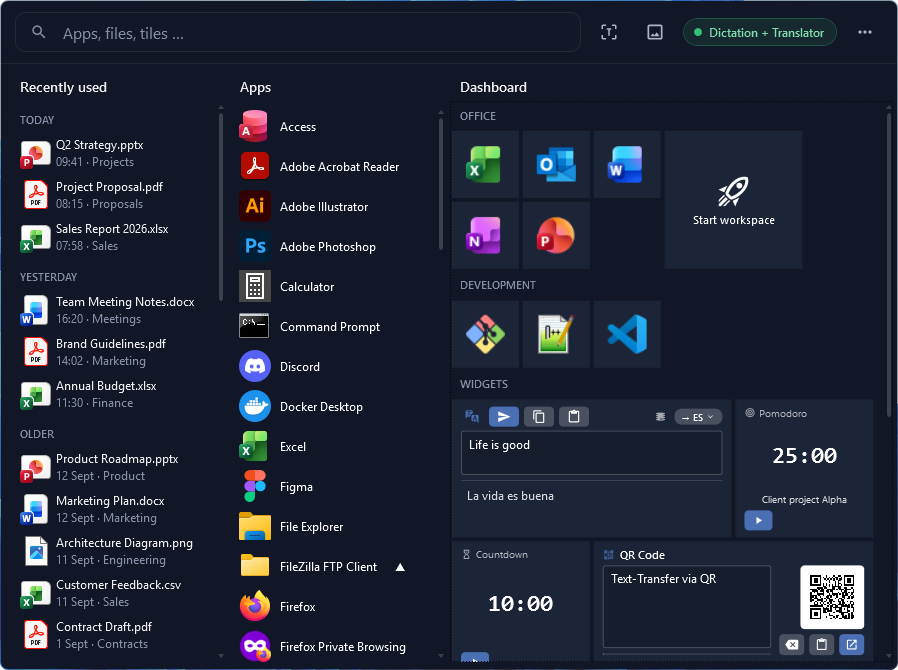
Editions: Web app tiles and multistart tiles are included in Free, the free edition, with up to 5 tiles (10 with email registration, Free+). There the tile opens in your default browser. From Pro (€36 one-time, no subscription) you choose the browser per tile, open sites in Chrome and Edge as a separate window without an address bar or in a private window, and get unlimited tiles. All features are free to try for 14 days; see Editions and pricing. Celerando runs on Windows 10 and 11 and needs no administrator rights.
In Chrome: install a page as an app and put it on the desktop
Google’s steps for Windows (as of October 2026):
- Open the website in Chrome.
- At the top right, select More (three dots) › Cast, save, and share › Install page as app…. On some sites you can instead select Install at the right end of the address bar.
- Follow the on-screen instructions.
To create a desktop shortcut for the installed app:
- In a new tab, open
chrome://apps. - Right-click the app › Create shortcut.
- Choose where it should go, for example the desktop, and click Create.
In Edge: install a site as an app and pin it
Microsoft’s steps (as of October 2026):
- Open the website in Edge.
- At the top, select Settings and more (three dots) › More tools › Apps › Install this site as an app. If the site is a progressive web app (PWA), Edge may offer to install it on its own.
- The app then appears at
edge://apps. Select Details on its card. That’s where you’ll find Pin to taskbar, Pin to Start and Create Desktop shortcut.
In Firefox: a web app or a desktop shortcut
Firefox for Windows installs sites as web apps from version 143 (from version 150 if you installed Firefox from the Microsoft Store). Mozilla’s steps:
- Open the website in Firefox.
- Click the web apps button in the address bar.
- Firefox installs the site, shows it on your Windows taskbar and adds a shortcut to the Start menu (in the “Firefox Web Apps” folder). If you’re asked whether to pin the app to the taskbar, click Yes.
The web app opens in its own window without the tab bar, bookmarks toolbar and menu bar. The address bar stays visible but is read-only. Web apps aren’t available in private browsing. To remove one, click the web apps button in the app’s last open window: the page moves back into a regular Firefox window and the app is uninstalled.
For a shortcut on the desktop, Mozilla describes this:
- Resize the Firefox window so you can see the desktop next to it.
- Click the shield icon in the address bar, and then click the padlock icon.
- While still holding the mouse button down, move the pointer to the desktop and release it.
You can drag items from the Bookmarks menu to the desktop the same way. The shortcut later opens your default browser, which isn’t necessarily Firefox. Windows saves it as a small file with the extension .url that holds nothing but the address.
If it doesn’t work
| What happens | What helps |
|---|---|
| Chrome shows no “Install” in the address bar | Only some sites offer it. The route through More › Cast, save, and share › Install page as app… still works |
| The shortcut opens a different browser | Shortcuts open in your default browser. Change the default browser, or install the site as an app (Chrome, Edge, Firefox for Windows). In Celerando you pick the browser per tile (from Pro) |
| Firefox shows no web apps button | Mozilla lists: Firefox version 143 or later (150 or later from the Microsoft Store), Windows only, restart Firefox. It isn’t available in private windows |
| Dragging from Firefox puts nothing on the desktop | Mozilla points to a separate help article: the error occurs when Windows runs with User Account Control (UAC) disabled and Firefox’s launcher process is enabled |
| You want to remove an installed app | Chrome: open the app, More › Uninstall [app name] › Remove. Edge: edge://apps › Details › Uninstall. Both let you delete the site’s data as well. Firefox: click the web apps button in the app’s last open window |
| You want the site on the taskbar | In Edge via edge://apps › Details › Pin to taskbar. Firefox for Windows puts the web app on the taskbar itself and asks whether to pin it. Chrome’s help names no menu item of its own for the taskbar |
| There are too many icons on the desktop | Keep web apps and programs as tiles in Celerando, sorted into groups, one Alt+Q away |
Celerando tile vs. browser shortcut
| Celerando web app tile | Browser shortcut or app | |
|---|---|---|
| Where it lives | in the Celerando dashboard, opened with Alt+Q at your mouse | on the desktop, in the Start menu, on the taskbar |
| Browser | default browser (Free), your choice per tile (from Pro) | shortcut: default browser; app: the browser that installed it |
| Own window without an address bar | in Chrome and Edge (from Pro) | as an installed app in Chrome and Edge; Firefox web apps show a read-only address bar |
| Icon | fetched from the site automatically, or one of 13,000+ | depends on browser and site |
| Start several sites and programs together | yes, multistart tile (also in Free) | no, one icon at a time |
| Hand it to colleagues | export the whole dashboard as a file | shortcuts: copy the .url files, or a whole folder of them; installed apps: install them again in the browser on each PC |
| Price | Free with up to 5 tiles, Pro €36 one-time | included in the browser |
As of October 2026. For one or two sites, a browser shortcut or app is all you need. Celerando pays off when your workday is made of several web applications and programs that you open together every morning.
Frequently asked questions
How do I make a website an app on Windows?
In Chrome, via More › Cast, save, and share › Install page as app…; in Edge, via Settings and more › More tools › Apps › Install this site as an app. The site then opens in its own window. In Firefox for Windows (version 143 and later), click the web apps button in the address bar.
Can I pin a website to the taskbar?
Yes. In Edge, install the site as an app and choose edge://apps › Details › Pin to taskbar. Pin to
Start is right next to it. Firefox for Windows puts a web app straight on the taskbar and asks whether
to pin it.
Does the shortcut save the website itself?
No. It only remembers the address; the browser loads the page as usual when you open it. If you want to keep a page’s content, save it as a file from the browser or print it to PDF.
Does this work with intranet pages?
Yes. A shortcut or a web app tile works for any address your browser can open, including internal systems like a ticket system, ERP or intranet. That’s exactly what Celerando’s tiles are made for.
What happens to my Celerando tiles if my Pro license expires?
The tiles keep working and open the page in your default browser. Your settings stay stored and take effect again once the license is renewed.
How do I set up the same sites on several PCs?
Ordinary shortcuts are small files with the extension .url that hold nothing but the address. Copy them, or a whole folder of them, to the other PC, and they open the site in the default browser there. Installed browser apps are different: you set them up again in the browser on each PC. In Celerando you export the whole dashboard as a file and import it on the other machine. A whole department’s tile set won’t fit into the five tiles of the Free edition; that starts to make sense from Pro. More on Start your workspace in one click.
Sources
- Google: Use web apps, Chrome Help, computer (retrieved October 26, 2026)
- Microsoft: Install, manage, or uninstall apps in Microsoft Edge (retrieved October 26, 2026)
- Mozilla: Create a desktop shortcut to a website, Firefox Help (retrieved October 26, 2026)
- Mozilla: Use web apps in Firefox for Windows, Firefox Help (retrieved October 26, 2026)
- Microsoft: Internet Shortcuts, Windows developer documentation (retrieved October 26, 2026)
More guides
- How to Ping an IP Address on Windows: Ping Test and Continuous PingRun a ping test in Command Prompt, start a continuous ping with ping -t, and learn what Request timed out and Destination host unreachable mean.
- Recent Files in Windows 11 and 10: Find, Hide and Clear ThemWhere Windows shows your recently opened files: File Explorer, Start, Jump Lists and Office. Plus how to hide or clear the list and keep files pinned.
- How to get the old right-click menu back in Windows 11Restore the full Windows 10 context menu in Windows 11: once with a shortcut, permanently with a registry entry or with a switch in Celerando.