How to get the old right-click menu back in Windows 11
Restore the full Windows 10 context menu in Windows 11: once with a shortcut, permanently with a registry entry or with a switch in Celerando.
You can get the old Windows 10 right-click menu back in Windows 11 in three ways: once with
Shift+right-click (or a click on Show more options), permanently with a registry
entry under HKEY_CURRENT_USER, or permanently with a switch in a program that sets that entry for
you. None of them needs administrator rights, and all of them can be undone at any time.
The registry entry is a workaround that Microsoft neither documents nor supports. It works on current versions of Windows 11; whether it survives the new, customizable context menu that Microsoft has been testing with Windows Insiders since August 2026 is an open question (more on that below).
This guide shows what the shortened menu leaves out, all three ways step by step, and how to go back to the Windows 11 menu.
What the Windows 11 context menu leaves out
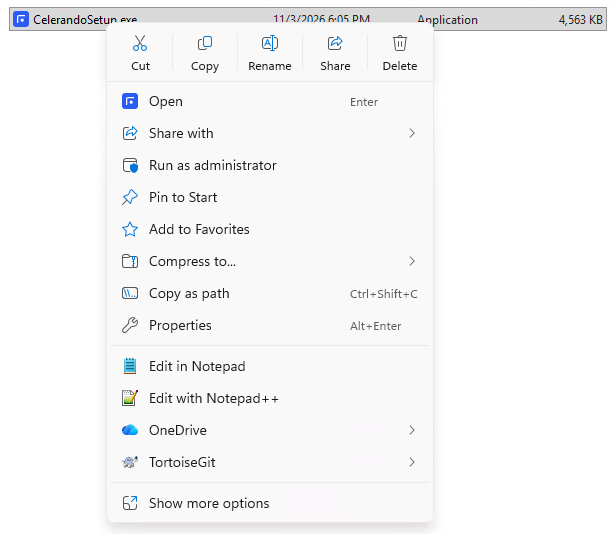
Since Windows 11, File Explorer shows a compact menu when you right-click a file, a folder or the desktop. Cut, copy, rename and delete sit as small icons in a bar, followed by a few entries such as Open with or Properties.
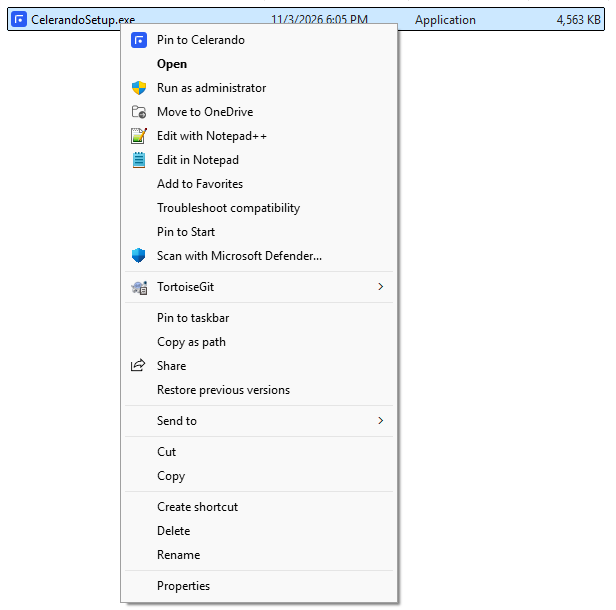
Everything else is one level down, behind Show more options: Send to and the entries of many programs, such as archivers, editors or virus scanners. Programs only appear in the compact menu if they were specially adapted for it; older entries end up in the second menu. If you use those entries every day, you click twice every time.
Before: the compact Windows 11 menu. Celerando is installed, but Pin to Celerando is not here; it is only behind Show more options.
After: the same file with the classic menu. Pin to Celerando is at the top, and Send to and all other entries are right there.
Once: Shift + right-click
Hold Shift and right-click the file or folder. Windows 11 then opens the classic menu directly. With the keyboard, Shift+F10 does the same when the file is selected in File Explorer.
Nothing changes permanently. That is enough for the occasional entry; if you need the classic menu all the time, use one of the next two ways.
Permanently with the registry
The permanent way is an empty registry entry in your own user account. Microsoft neither documents nor supports it, but it has been widely used since Windows 11 came out. “Permanent” means it stays set until you remove it; a future Windows update can still make it stop working.
-
Open the Command Prompt: Windows+R, type
cmd, press Enter. No admin rights are needed. -
Paste this line and press Enter:
reg add "HKCU\Software\Classes\CLSID\{86ca1aa0-34aa-4e8b-a509-50c905bae2a2}\InprocServer32" /f /ve -
Restart File Explorer: in Task Manager (Ctrl+Shift+Esc), right-click Windows Explorer and choose Restart. Alternatively, sign out and back in or restart the PC.
From now on, every right-click in File Explorer and on the desktop opens the classic menu. The change applies to your user account only; other accounts on the same PC keep the Windows 11 menu.
Permanently with a switch in Celerando
Celerando is a tile dashboard for Windows 10 and 11. Its configuration has a switch that sets or removes exactly the registry entry above, without opening a command line:
- Right-click the Celerando icon in the notification area of the taskbar › Configuration.
- Under General, turn on Win10 Explorer context menu.
- Restart File Explorer in Task Manager (or sign out and back in). Celerando reminds you of this after the switch.
The switch works like the registry way: for all programs in File Explorer, for your user account only, and turned off, the Windows 11 menu is back. Because it sets the same entry, the same limitation applies: if a Windows update makes the entry stop working, the switch won’t help either.
For Celerando itself this has a practical side effect. The dashboard adds Pin to Celerando to the Explorer context menu: right-click a file or folder, and it becomes a tile on the dashboard, which you open over any window with Alt+Q. In the compact Windows 11 menu that entry is behind Show more options; in the classic menu it is at the top.
Editions: The switch, the dashboard and Pin to Celerando are included in Free, the free edition, with at most 5 tiles (10 with email registration, Free+). Pro (€36 one-time, no subscription) removes the limit. See Editions and pricing. Celerando installs into your user profile and needs no administrator rights.
Back to the Windows 11 menu
-
With the registry: in the Command Prompt, enter
reg delete "HKCU\Software\Classes\CLSID\{86ca1aa0-34aa-4e8b-a509-50c905bae2a2}" /fand restart File Explorer.
-
With Celerando: turn off Win10 Explorer context menu and restart File Explorer.
Both remove the same entry, so you can turn it on with one and off with the other.
If it doesn’t work
| Problem | Fix |
|---|---|
| The right-click still shows the compact menu after turning it on | File Explorer only reads the entry when it starts. Restart Windows Explorer in Task Manager or sign out and back in |
reg add says “Access is denied” | A work PC can block registry changes by policy. Shift+right-click still works |
| The compact menu is back after a Windows update | Check whether the entry is still there (in Celerando the switch shows its state) and set it again. If it still has no effect, the update has probably overridden it: try Shift+right-click, and if your menu already has Customize menu, set up the new menu (see below) |
| An entry is missing in the classic menu too | The program never added itself to the context menu, or it has been uninstalled. The classic menu only shows what is registered |
Frequently asked questions
Is the registry entry dangerous?
No. It lives under HKEY_CURRENT_USER, affects only your user account and only changes which menu File
Explorer shows. reg delete or the switch in Celerando removes it again.
Do I need administrator rights?
No, neither for the registry way nor for Celerando.
Does the classic menu apply to the desktop too?
Yes. The desktop is part of File Explorer, so right-clicking it shows the classic menu as well.
Is Microsoft working on its own solution?
Since August 2026 Microsoft has been testing a redesigned context menu with Windows Insiders (Windows Insider Blog, 17 Aug 2026). Microsoft has not yet given a date for regular Windows 11 versions.
In the new menu, Customize menu at the bottom opens a new page in Settings under Personalization. There you can turn on commands such as Send to and Create shortcut, move app entries into the main menu, and show Cut, Copy, Rename and Delete as text instead of icons. That is not the classic menu, but it comes close.
Microsoft does not say whether the registry entry and Shift+right-click still open the classic menu there, and we have not tested it. If your Windows has the new menu, set it up with Customize menu first. On all other versions of Windows 11, the ways in this guide apply.
Why is the switch in Celerando called “Win10 Explorer context menu”?
Because it brings back the menu Windows 10 shows by default. On Windows 10 itself it changes nothing visible, since the classic menu is the standard there anyway.
Sources
- Microsoft, Windows Insider Blog: Improving File Explorer context menu: faster, simpler and more customizable (retrieved 14 Nov 2026)
- Deskmodder: Windows 11: Das Kontextmenü wird kompakter und erhält die Möglichkeit zur Anpassung (in German, retrieved 14 Nov 2026)
- Pureinfotech: How to bring back classic context menu on Windows 11 (retrieved 14 Nov 2026)
More guides
- How to Ping an IP Address on Windows: Ping Test and Continuous PingRun a ping test in Command Prompt, start a continuous ping with ping -t, and learn what Request timed out and Destination host unreachable mean.
- Recent Files in Windows 11 and 10: Find, Hide and Clear ThemWhere Windows shows your recently opened files: File Explorer, Start, Jump Lists and Office. Plus how to hide or clear the list and keep files pinned.
- How to organize desktop icons in Windows and keep them tidySort, arrange and hide desktop icons in Windows 10 and 11, move files off the desktop, and when a tile dashboard works better than the desktop.